How to Screenshot a Bluesky Post the Right Way
You're scrolling through Bluesky and someone drops an absolute gem, a brilliant take, a funny observation, a chart that explains everything. You want to save it. Maybe share it. So you take a screenshot the normal way.
Then you look at it.
There's your notification bar across the top. A battery icon. Maybe your time. The Bluesky app's chrome cluttered around the actual post. If you're in dark mode, it looks completely different on your friend's phone. If the post had long text, half of it got cut off.
That's not what you wanted. And honestly? You're not alone, this is one of those small frustrations that comes up constantly for Bluesky users who want to share content across platforms.
There's a much cleaner way to do this. Here's exactly how.
Why Regular Phone Screenshots Fall Short
A standard screenshot from your phone captures everything on screen, including things you don't want. Here's what usually goes wrong:
- Phone UI clutter. Status bar, app navigation, notch, dynamic island, all of it ends up in your screenshot whether you like it or not.
- Dark mode vs light mode mismatches. You're in dark mode, your follower's on light mode. The screenshot looks completely different from what they see.
- Long posts get cropped. Bluesky allows up to 300 characters per post. On some screens, longer posts scroll off, and you end up with a cut-off screenshot.
- Resolution varies wildly. Screenshots from older phones look blurry when shared on social media or dropped into a presentation. A 720p screenshot that gets stretched to fill a 1080p Instagram story is not a good look.
- No consistent branding. Every screenshot looks different depending on the device, OS version, and settings of whoever took it.
For casual use, none of this matters much. But if you're a creator, journalist, marketer, or just someone who cares about how their content looks, these details add up.
The Better Way: A Bluesky Screenshot Generator
Instead of photographing your screen, a screenshot generator pulls the post data directly from Bluesky's open AT Protocol API and renders it as a clean image card. No app chrome. No status bar. No dark mode inconsistency.
What you get instead is a polished, 1200px-wide PNG that looks the same on every device and every platform. It includes the author's avatar, display name, handle, post text, any embedded media, and live engagement stats (likes, reposts, replies) at the moment you generate it.
BskySuite's Bluesky Post Screenshot Generator does exactly this, and it's completely free with no account required.
Step-by-Step: How to Screenshot a Bluesky Post
The whole process takes under two minutes, even on mobile.
Copy the Bluesky post link
On the Bluesky app (iOS or Android), tap the three-dot menu on the post you want and select Copy link to post. On desktop, the link is in your browser's address bar when you have the post open, just copy it directly.
Open BskySuite and paste the link
Go to bskysuite.com/bluesky-screenshot-generator and paste the link into the input field. The tool works on any browser, Chrome, Safari, Firefox, on any device.
Pick a card theme
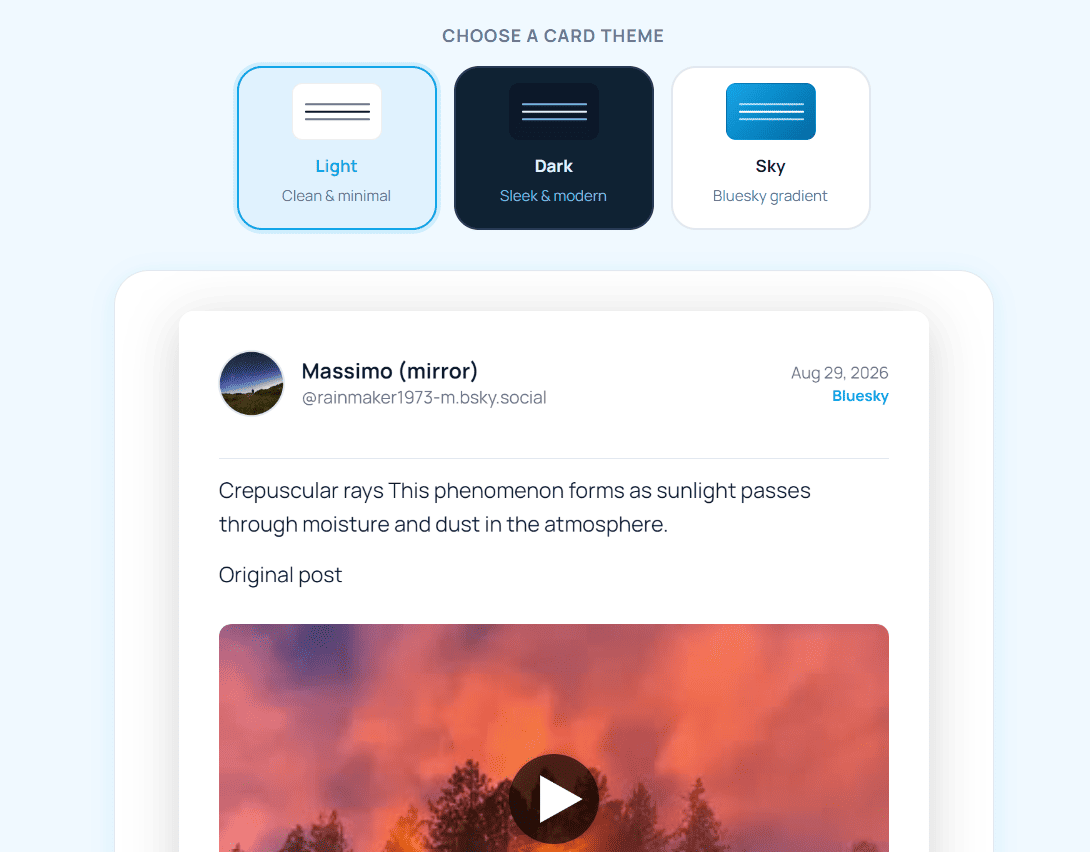
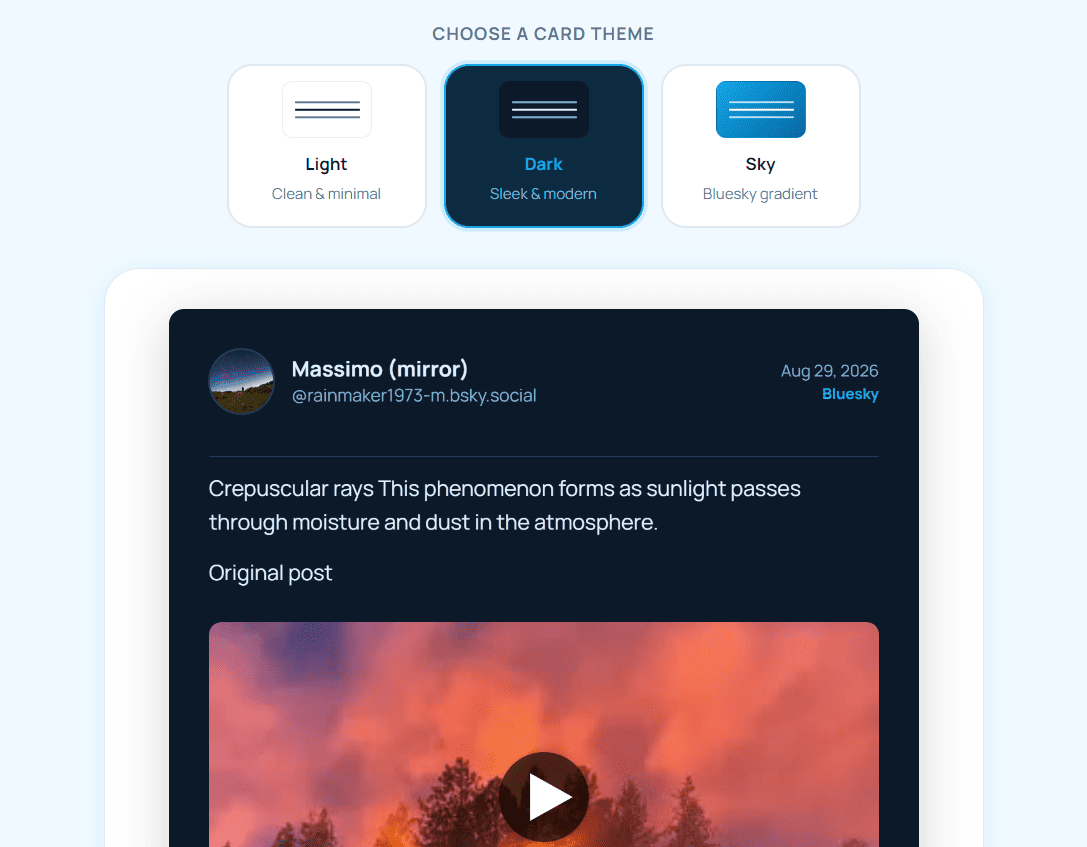
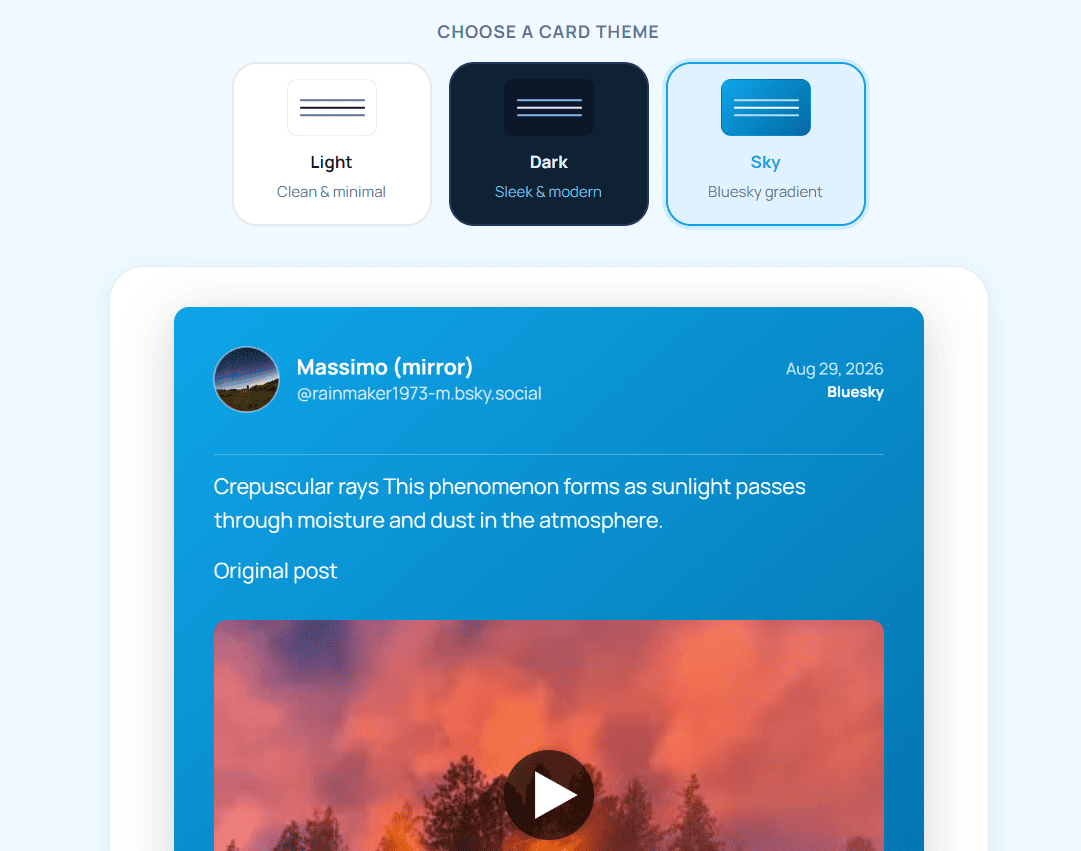
Choose from light, dark, or gradient. Light is the most versatile for sharing across platforms. Dark looks great if the post is going on a dark-background story or Discord message. Gradient tends to stand out in crowded feeds.
Download your screenshot
Click the Download button. A high-resolution PNG saves directly to your device, no watermarks, no compression, no login. It's the same whether you're on a phone or a laptop.
Choosing the Right Theme for Your Use Case
The three available themes aren't just aesthetic choices, each one works better in specific contexts.
Light
Clean and universal. Works on any platform. Best for newsletters, articles, and Instagram feed posts.
Dark
Matches Bluesky's own dark mode. Great for Discord, Twitter/X dark-mode users, and nighttime stories.
Gradient
Eye-catching in feeds and stories. Best when you want the screenshot to stand out rather than blend in.
There's no wrong answer here, it's just worth thinking about where the image ends up before you download. A gradient card that pops on Instagram might look out of place in a formal newsletter.
Where People Actually Use Bluesky Post Screenshots
Once you have a clean image card, the use cases open up considerably:
Twitter / X
Bluesky posts don't embed natively on Twitter, sharing a link just produces a basic text preview. But sharing a screenshot of the post as an image? That gets full visual treatment in the feed. This is the most common use case for cross-platform sharing.
Instagram and TikTok
Neither platform makes it easy to share links. An image card of a Bluesky post works perfectly as a Story, a Reel background, or a feed post. Add your own caption context and you've got original-looking content.
Newsletters and Blogs
Embedding a screenshot directly into email or a blog post is far more readable than a link. Substack writers, in particular, use this a lot, a clean post card embedded mid-article looks intentional and professional.
Discord and Slack
Community channels often discuss what's happening on various platforms. A clean screenshot drops into conversation much better than a raw link, especially in communities where some members aren't on Bluesky.
Presentations and Reports
If you're citing social media content in a presentation, for market research, media coverage, or academic use, a clean screenshot is far more credible than a phone photo of a screen.
A Few Things Worth Knowing
The tool works on public Bluesky posts only. Bluesky's AT Protocol API gives open access to anything posted publicly, but private accounts and unlisted posts aren't reachable without authentication. If a post is from a private account, the generator will return an error rather than producing a card.
Posts with images, GIFs, and video thumbnails are all supported. The card will include the first attached image if there is one, though for video posts, it shows the thumbnail rather than the video itself (since you can't embed a video in a static PNG).
The engagement numbers on the card are real and pulled at the time of generation. They're not estimates or approximations, they're the actual like, repost, reply, and quote counts as reported by Bluesky's API at that moment.
Ready to try it?
Paste any public Bluesky post link and get a clean screenshot card in seconds. Free, no account needed.
Open Screenshot Generator →Frequently Asked Questions
Also see: How to Download Bluesky Videos · How to Save Images from Bluesky Posts · How to Share Bluesky Posts on Instagram & Twitter