Bluesky posts can contain up to four images, but unlike some other platforms, there's no dedicated save button built into the app. Whether you want to keep a stunning photo, save an infographic for later, or archive content you created, BskySuite makes it easy to download any image from a Bluesky post in its original full resolution, for free.
What You'll Need
- The link to a Bluesky post that contains one or more images
- A browser on any device (Chrome, Safari, Firefox, all work)
- No account required, no app to install
Step-by-Step: Save Images from a Bluesky Post
Find the Bluesky post with the image
Open Bluesky (app or web) and navigate to the post containing the photo(s) you want to save. The post must be from a public account, images on private accounts are not accessible.
Copy the post link
On mobile: tap the three-dot menu (⋯) on the post → tap "Copy link to post".
On desktop: click the three-dot menu → click "Copy link to post", or copy the URL from your browser's address bar when viewing the post directly.
Paste the link into BskySuite
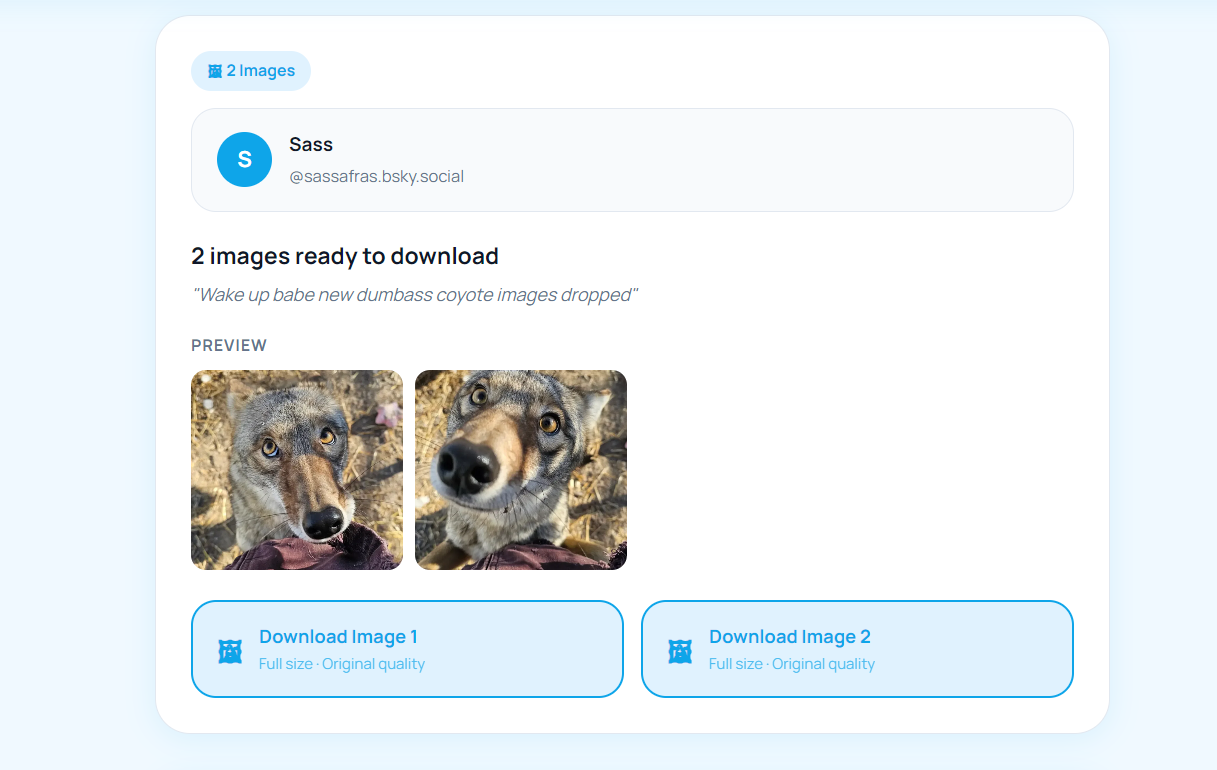
Go to bskysuite.com, paste the copied link into the input box, and click "Download". BskySuite will instantly fetch all images attached to that post.
Download the images you want
BskySuite displays a preview of all images in the post. Click the download button for each image you want to save. Images are downloaded in their original full resolution, exactly as the creator uploaded them, with no compression or watermarks.
💡 Pro tip: If a post contains multiple images, you'll see all of them listed. You can download each one individually, great for posts with image carousels or photo threads.
Saving Images on Mobile (iOS & Android)
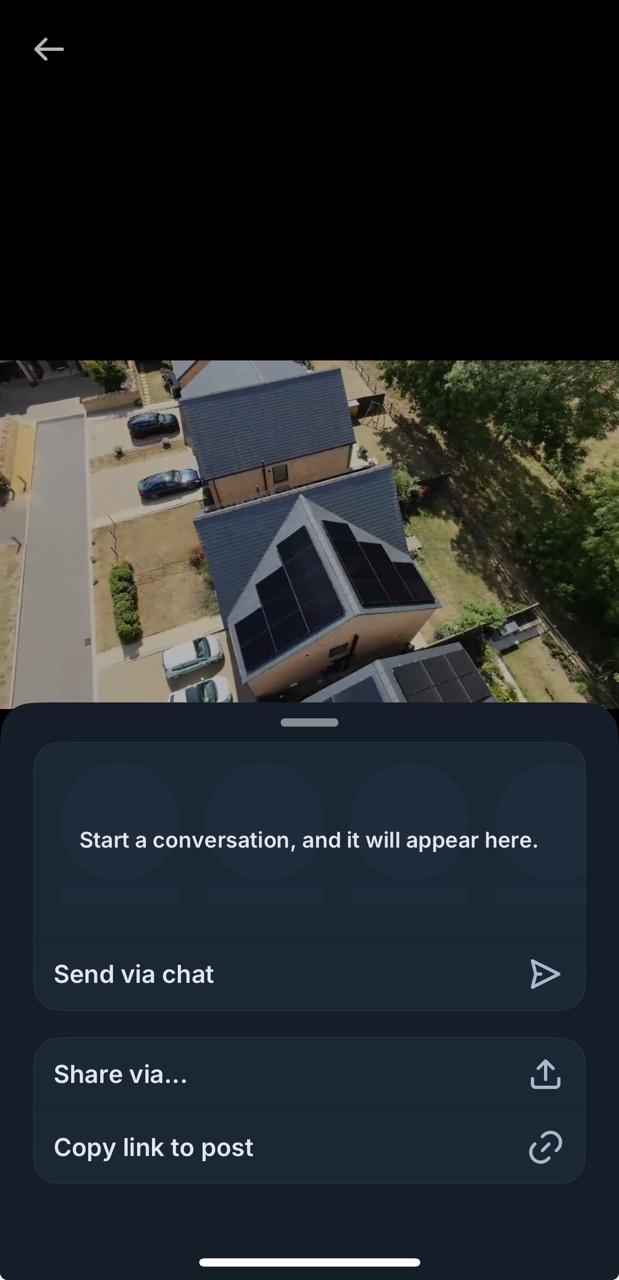
BskySuite works in any mobile browser, so the steps above apply on phone too. After tapping the download button, your device will save the image to your Downloads folder (Android) or to Files / Photos (iOS).
⚠️ Note for iPhone users: Safari may open the image in the browser rather than downloading it. If that happens, long-press the image → tap "Save to Photos" or "Save to Files" to keep it locally.
Why Use BskySuite Instead of Screenshots?
Screenshots crop to your screen size and lose image quality. BskySuite downloads the original file straight from Bluesky's servers, that means full resolution, correct aspect ratio, and no pixelation, even for high-res photos or detailed infographics.
What Resolution Do You Actually Get?
Bluesky keeps more than one copy of every uploaded image. There is a display version the app shows inside your timeline, deliberately kept small so feeds load quickly on mobile data, and there is the fuller copy stored on Bluesky's CDN. BskySuite fetches the latter.
In practice that means a photo posted from a recent phone usually comes back at its full uploaded dimensions rather than the roughly 1000 pixel wide version the app renders inline. For a detailed infographic or a screenshot of text, that difference decides whether the words are readable at all when you open the file later.
You can check this on any post yourself. Save an image by right-clicking it in the Bluesky web app, then download the same image through BskySuite and compare the two file sizes. The BskySuite copy is normally several times larger.
One honest limit is worth stating. Bluesky compresses images when they are uploaded, so if a photographer posted a 12MB export, Bluesky had already reduced it before it ever reached the CDN. No downloader can recover detail that Bluesky discarded at upload time. What you get is the best copy that exists on Bluesky's servers, which is not always the same as the file that left the photographer's camera.
Saving All Four Images from One Post
A single Bluesky post can carry up to four images. In the app they appear as a grid or a swipeable carousel, and there is no way to act on more than one at a time.
Pasting the post link into BskySuite lists every attached image as a separate row with its own download button, so you never need to open each image individually or swipe through the carousel to reach the last one. The order matches the order the creator uploaded them.
Two details catch people out. Alt text written by the creator is not part of the image file, so it does not travel with the download. If the alt text matters to you, for example on an infographic or a chart, copy it from the post before you close the tab. And a post that shows four thumbnails does not always hold four separate files, because a creator who uploaded the same image twice will produce two identical downloads.
Quote Posts, Reposts and Threads
The most common reason a download returns nothing is that the link points at a post which does not actually hold the image.
When someone quote posts, the image usually belongs to the original post, not the quote. Copying the link from the outer post can return the quoter's own attachment, or nothing at all. Open the embedded post first, then copy that link.
A repost has no content of its own at all. It is a pointer to somebody else's post. Copying a link from a repost in your timeline normally resolves to the original, but if a download comes back empty, open the post directly and copy the link from there.
In a thread, every reply is its own post with its own URL. If the image you want sits four replies down, the thread's opening link will not reach it. Tap the specific reply that contains the image so its own permalink loads, then copy that.
Quick check: a Bluesky post link always looks like bsky.app/profile/[handle]/post/[id]. If the URL you copied ends at the profile rather than a post id, you have the account link, not the post link.
File Names, Formats and Staying Organised
Downloads arrive in the format the creator originally uploaded. Photographs are almost always JPEG, while graphics, logos and anything with transparency are usually PNG. BskySuite does not convert between them, because re-encoding an image is lossy and would leave you with a worse copy than the one Bluesky is holding.
Saved files carry the identifier Bluesky uses on its CDN rather than a friendly caption, which is fine for one image and unhelpful once you have thirty. If you are archiving a set, rename each file as you save it, or drop them into a dated folder while you still remember what the post was.
It is also worth saving the post URL alongside anything you intend to publish later. The file on your disk carries no record of who made it, and tracking an image back to its creator months afterwards is far harder than it sounds.
When an Image Will Not Save
Most failed downloads come down to one of a handful of causes.
| What you see | Why | What to do |
|---|---|---|
| Nothing found | The link points at a profile, a repost or a quote rather than the post holding the image | Open the post containing the image directly and copy that permalink |
| Post not found | The post was deleted, or the account was deactivated or suspended | Nothing can be recovered; the file no longer exists on Bluesky's servers |
| Nothing happens on tap | Safari opened the image in a tab instead of downloading it | Long-press the image and choose Save to Photos or Save to Files |
| Saves without an extension | An older browser did not read the file type correctly | Rename the file and add .jpg or .png to the end |
| Only some images download | A browser popup or download blocker interrupted the batch | Allow multiple downloads for bskysuite.com, then retry |
| Blurry or small result | You saved the feed thumbnail, not the file from the CDN | Paste the post link into BskySuite rather than right-clicking in the timeline |
If a post is from an account that has blocked you, or from an account that is not publicly visible, no tool can reach it. Bluesky serves those images only to permitted viewers, and BskySuite has no special access. That is a deliberate limit, not a bug.
What You May Do with Images You Save
Downloading is a technical act. Whether you may then use the file is a separate question, and the honest answer is that saving an image gives you no rights over it.
Keeping a copy for yourself, for reference, for an offline archive or because you liked it, is uncontroversial. Reposting someone's photograph as though it were your own is not, and neither is putting it into a commercial project. The person who made the image still holds the copyright, exactly as they would on any other platform.
If you plan to share something publicly, credit the creator by handle and link back to the original post. Most people on Bluesky respond well to that and badly to the alternative. Where an image is clearly commercial work, ask first. We cover this in more depth in our guide on whether downloading Bluesky media is legal, and our copyright and takedown page explains how to reach us if your work has been misused.
Frequently Asked Questions
Is it free to download images?
Yes, BskySuite is completely free with no download limits.
Do I need a Bluesky account to use BskySuite?
No. You only need the public post link. No login or account connection is required.
Are there watermarks on downloaded images?
No watermarks. BskySuite fetches the original image file directly from Bluesky's CDN, exactly as it was uploaded by the creator.
What image format will I get?
Images are downloaded in their original format, typically JPEG for photos and PNG for graphics, matching whatever was uploaded to Bluesky.
Can I download images from private accounts?
No. Only images from public Bluesky accounts can be downloaded. Content from private accounts is not publicly accessible.
Can I download all images in a post at once?
BskySuite shows all images from a post together. You can download each one with a single click, there's no need to navigate between images.
What resolution will the saved image be?
You get the copy stored on Bluesky's CDN, which is normally much larger than the version shown in your timeline. Bluesky does compress images at upload, so the result is the best copy on Bluesky's servers rather than the creator's untouched original.
Why does my download come back empty?
Usually because the link points at a profile, a repost or a quote post rather than the post that actually holds the image. Open the post containing the image directly and copy that link. If the post was deleted or the account is private, the image cannot be reached at all.
Does the alt text come with the image?
No. Alt text is stored on the Bluesky post, not inside the image file, so it does not travel with the download. Copy it from the post yourself if you need it.
Ready to save a Bluesky image?
Paste any public Bluesky post link and download the images in full resolution, free, no watermarks, any device.
Try BskySuite Free →