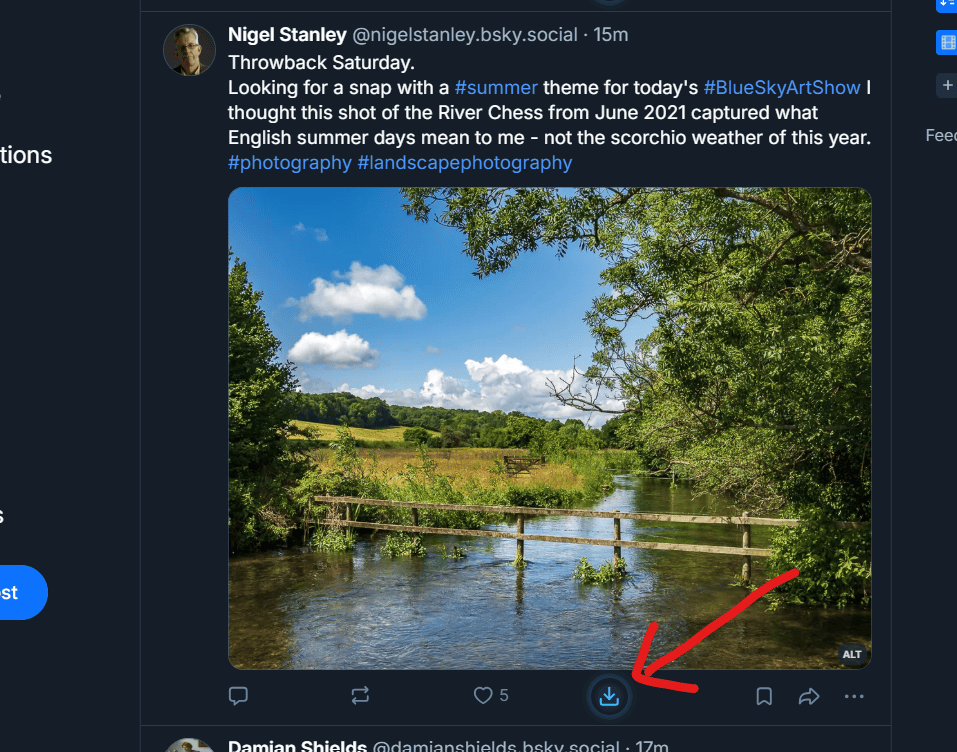
Bluesky has no built-in way to save the videos, GIFs, and images you scroll past every day. You can copy a post link and paste it into a downloader each time, but if you save media often, that gets tedious fast. The Bluesky Media Downloader Chrome extension removes that friction: it places a small download button directly inside the Bluesky interface, so you can save any public post's media in a single click without ever leaving your feed. This guide explains what it does, how to install it, whether it is safe, and how it compares to downloading by hand.
Get the free Bluesky downloader extension
Install it from the official Chrome Web Store and start saving Bluesky media in one click. Free forever, no account needed.
Add to Chrome, FreeNo account, prefer the web tool? Use the BskySuite downloader
At a glance
- What it is: a free Chrome extension that adds a download button to Bluesky posts.
- Media types: videos (MP4), GIFs, and images (JPEG), in full original quality.
- Cost: free, with no sign-up and no download limit.
- Permissions: none beyond running on bsky.app. No data is collected.
- Works on: Chrome, Edge, Brave, Opera, and other Chromium browsers.
- Where to get it: the official Chrome Web Store.
What is the Bluesky Media Downloader extension?
The Bluesky Media Downloader is a lightweight browser extension for Bluesky. Once installed, it detects every post in your feed that contains media and inserts a download button next to the usual reply, repost, and like controls. Clicking that button opens BskySuite with the post already loaded, so the video, GIF, or image is ready to save at its original quality. Because Bluesky is built on the open AT Protocol, the extension only needs the public post link to find the media. It never touches your account.
In plain terms: it turns saving Bluesky media from a multi-step, copy-and-paste chore into a single click, without changing how you browse.
How to install the Bluesky downloader Chrome extension
Installation takes under a minute and does not require an account.
- Open the Chrome Web Store listingGo to the Bluesky Media Downloader page on the official Chrome Web Store.
- Click Add to ChromePress the blue Add to Chrome button, then confirm by clicking Add extension in the popup that appears.
- Open BlueskyVisit bsky.app and browse as usual. A download button now appears on every post that contains a video, GIF, or image.
- Pin it (optional)Click the puzzle-piece icon in your toolbar and pin BskySuite so the extension stays visible.
On Edge, Brave, or Opera? These browsers install Chrome Web Store extensions directly. Open the same store link and you may see an "Allow extensions from other stores" prompt the first time. Approve it once and the install proceeds normally.
Why Chrome May Show a "Proceed with Caution" Message
Some people see a dark banner during install reading "Proceed with caution: this extension is not trusted by Enhanced Safe Browsing." It looks alarming, so it is worth explaining exactly what it means, because it is not a finding about this extension.
Chrome has two levels of Safe Browsing. Most people run Standard protection and never see this message at all. Enhanced protection is an opt-in setting that adds extra checks, and one of them flags any extension Google has not yet marked as trusted.
An extension earns trusted status when its developer has followed the Chrome Web Store Developer Program Policies for a sustained period, generally a few months. It measures developer account history, not the code. A newly published extension from a new developer gets the banner no matter how carefully it was built, and it clears on its own once enough compliant time has passed. This extension was published in July 2026, so it is still inside that window.
| What the banner is | What it is not |
|---|---|
| A note that the developer account is new | A malware or virus detection |
| Shown only to Enhanced protection users | Shown to everyone |
| Cleared automatically over time | A permanent mark |
| Based on account history | Based on what the extension does |
How to check for yourself rather than taking our word for it
You should not install an extension because a website told you it was fine. Verify it instead, which takes about thirty seconds.
On the Chrome Web Store listing, scroll to Privacy practices. Google generates that section from the extension package rather than from anything we write. For this extension it shows that no data is collected and no permissions are requested. An extension that genuinely wanted to read your browsing history or your other tabs could not hide it there.
You can also check after installing. Open chrome://extensions, click Details on Bluesky Media Downloader, and look at Site access. It is limited to bsky.app. The extension is inert on every other site you visit, including this one.
What we can and cannot do about it
We cannot remove the banner. There is no appeal, no form and no setting on our end. Republishing, renaming or shipping a new version does nothing, and creating a fresh developer account would be worse, because it resets the clock and starts the waiting period again.
What we have done is keep the extension as small as it can be. It requests no permissions at all, runs only on Bluesky, collects nothing and contains no remote code. That is the part within our control, and the safety section below covers it in more detail.
If the banner still puts you off, that is a reasonable position, and the BskySuite website downloader does the same job with no installation at all. Paste a post link and download. You lose only the one-click convenience.
How to download a Bluesky video, GIF, or image
After installing, saving media is genuinely one click.
- Find a post with mediaScroll to any public Bluesky post that has a video, GIF, or image attached.
- Click the download buttonThe extension's button sits in the post's action bar. Click it, and BskySuite opens in a new tab with that post loaded.
- Save the fileClick download in BskySuite. Videos save as MP4 and images as JPEG, in the original quality the creator uploaded, with no watermark.
What can you download with the extension?
The extension handles every media type Bluesky supports:
- Videos: saved as MP4 files at the original resolution, up to 1080p.
- GIFs: including Tenor and Giphy GIFs embedded in posts.
- Images: single or multiple images per post, each at full size.
It only works with public posts, which is by design. Private-account content is never accessible because the extension uses no login and cannot bypass Bluesky's privacy settings.
Why use the extension instead of the website?
Both the extension and the BskySuite website download the same full-quality files. The difference is workflow. The website is perfect for a one-off save or when you are on a device where you cannot install extensions. The extension is built for people who save media regularly and want to stay in their feed.
BskySuite website
- Nothing to install
- Works on any device and browser
- Copy the post link, then paste
- Best for occasional downloads
Chrome extension One click
- Download button inside Bluesky
- No copying or pasting links
- Save without leaving your feed
- Best for frequent downloads
Is the Bluesky downloader extension safe?
Yes. The extension is published on the official Chrome Web Store, which reviews every submission before it goes live. More importantly, it is built to be minimal by design:
- No permissions requested. It runs only on bsky.app and asks for no access to your other tabs, browsing history, or accounts.
- No data collected. The extension does not track you, store analytics, or transmit any personal information.
- No login involved. It reads only the public post link, so your Bluesky password is never entered or seen.
- No remote code. All of the extension's logic ships inside the package, with nothing loaded from outside servers.
That narrow footprint is deliberate. An extension that asks for the least access is the safest kind to install, and Bluesky Media Downloader asks for almost nothing.
Does it work on Edge, Brave, and other browsers?
Yes. Microsoft Edge, Brave, Opera, Vivaldi, and most other Chromium-based browsers can install extensions straight from the Chrome Web Store. The experience is identical to Chrome. Firefox and Safari use different extension systems and are not currently supported, but you can always use the BskySuite website in any browser, including on iPhone and Android.
Troubleshooting: the download button is not showing
If the button does not appear on a post, it is almost always one of these reasons:
- The post has no media. The button only appears on posts that contain a video, GIF, or image. Text-only posts do not get one.
- Bluesky was already open when you installed. Refresh the bsky.app tab once after installing so the extension can load into the page.
- The post is from a private account. Only public posts are supported, so protected content will not show a button.
- The extension is turned off. Open your browser's extensions page and confirm Bluesky Media Downloader is enabled.
If it still does not appear, try disabling and re-enabling the extension, or reinstalling it from the Chrome Web Store. As a fallback, you can always paste the post link into the BskySuite website and download from there.
Ready to save Bluesky media in one click?
Add the free Bluesky Media Downloader to your browser and never copy a post link again.
Add to Chrome, FreeA note on copyright and etiquette
Downloading a public Bluesky video or image for personal use is generally fine, but the media still belongs to the person who made or posted it. Do not repost someone else's content as your own, and do not use it commercially without permission or credit. Saving a clip to watch later is one thing; reusing a creator's work without acknowledgement is another. Respecting creators keeps Bluesky a healthy place to share.
Frequently asked questions
Why does Chrome say "Proceed with caution" when I install it? That banner comes from Chrome's Enhanced Safe Browsing, an opt-in setting, and it appears for extensions whose developer account is still new. It reflects account history rather than anything about the code. It clears by itself as the account ages, and it is not a malware warning.
Is it safe to click "Continue to install"? That is your decision, and you should verify rather than trust us. Check the Privacy practices section of the Chrome Web Store listing, which Google generates from the package itself. It shows no data collected and no permissions requested. After installing you can confirm under chrome://extensions that site access is limited to bsky.app.
Can you get the warning removed? No. There is no appeal process, and republishing or renaming the extension does nothing. Starting a new developer account would reset the trust clock and make the wait longer.
Is there a Chrome extension to download Bluesky videos?
Yes. Bluesky Media Downloader is a free Chrome extension that adds a one-click download button to every Bluesky post with a video, GIF, or image. It saves media at full quality with no watermark and no login.
Is the BskySuite Chrome extension free?
Yes, it is completely free. There is no paid tier, no sign-up, and no usage limit, and it is published on the official Chrome Web Store.
What permissions does the extension need?
None beyond running on bsky.app. It requests no access to your other tabs, history, or accounts, and it collects no user data.
Does the extension work on Microsoft Edge and Brave?
Yes. Edge, Brave, Opera, and most other Chromium browsers install Chrome Web Store extensions, so the BskySuite extension works on them too.
Do I need a Bluesky account to use it?
No. The extension reads only the public post link and never asks for your Bluesky login. It works with any public post.
Where do downloaded files go?
Files save to your browser's default Downloads folder. Videos download as MP4 and images as JPEG, in the original quality the creator uploaded.